Zero-Downtime PST to Office 365 Conversion — Ensure Access & Prevent Data Loss
Convert PST to Office 365 without any interruptions and guarantee complete access, data integrity and continuous business operations.


It can be difficult to convert mailbox data to the cloud. When converting old Microsoft Outlook PST files into Microsoft 365, it is normal to be concerned about downtime or losing access. You can maintain order by making a thorough plan and employing the appropriate strategy. This post will teach you how to convert without any downtime, maintain connectivity and safeguard your data. Additionally, we will discuss how the software makes PST to Office 365 Conversion easy.
Why zero downtime matters
Users anticipate constant access to converting PST files to Office 365. You run the risk of losing productivity if mailboxes are unavailable, even for a short period of time. It is possible to overlook or delay crucial emails or client communications. Data loss is a serious risk as well. You risk losing folders, broken links or incomplete data if your PST emails are big or the conversion is not well planned. With a zero downtime conversion, users continue to work while the conversion takes place in the background. They have access to calendars and contacts, send and receive emails and are confident in the system dependability.
Manual steps for conversion
A clear set of manual methods for a secure PST to Office 365 Conversion can be found here.
1. Cleanup and inventory
• List every PST file that needs to be converted.
• Eliminate redundant information, out of date things and unnecessary data.
• Anything you do not require in the active mailbox should be archived.
2. Get the Office 365 environment ready.
• If you have not previously, create user accounts in Office 365.
• Assign the appropriate mailbox access licenses.
• As needed, turn on mailbox functions like archiving and retention.
3. Use a smaller PST file to test.
• To test the procedure, pick one user or one PST file.
• Check that everything functions after converting that file into Office 365.
• Examine the attachments, leachability, folder organisation, and multi device accessibility.
4. Schedule the time for the conversion.
• Select a period of low usage, such as the weekend or late evening.
• Provide users with clear directions and information about the plan.
• Before you start, make sure you have backups.
5. Bring the PST files in.
• Use a conversion service or the converter tool in Outlook.
• Open the account in Outlook, select File → Open & Export → Import/Export, click convert from another application or file and then pick the PST if you use Outlook.
• Choose Include sub folders and the convert location, which is usually the user mailbox.
• Track developments and look for mistakes.
6. Check after conversion
• Request that users check their online and mobile access, mailboxes and files.
• Verify that attachments are open and the search function.
• Verify that contacts and calendar entries are complete.
• Address any problems as soon as possible.
7. Dismantle outdated data sources
• The original PST files can be retired or archived after verification.
• Documentation should be updated to reflect the current situation.
• To prevent misunderstandings, remove access to the previous site.
Introducing Zero-Downtime PST to Office 365 Converter
A user friendly application made specifically for this kind of conversion situation is the TrustVare PST to Office 365 Converter utility.
It contributes to a zero downtime PST to Office 365 conversion in the following ways.
• It facilitates bulk conversion of many PST files at once.
• Your mailbox structure remains unchanged during the conversion since it preserves the folder hierarchy.
• It is compatible with every version of Outlook and does not require a lot of technical knowledge to operate.
• You can decide which folders or files to convert first thanks to its selective conversion feature.
• Maintaining contacts, calendars, emails, attachments and metadata aids in preventing data loss.
This technology decreases the number of manual tasks, decreases downtime and increases conversion process confidence.
How to use
- Download and install the Software
- Select the PST file or folder of PST.
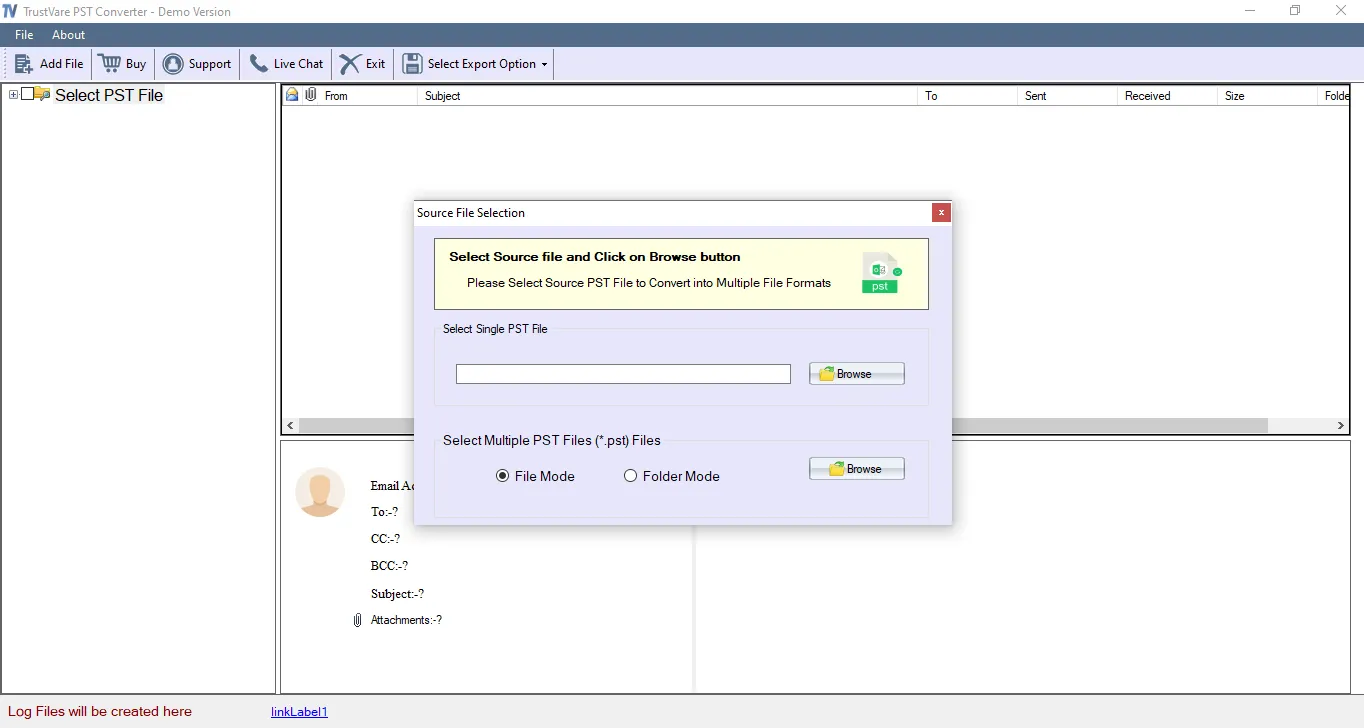
- Provide the credentials of the Office 365 admin or user.
- Select which folders you want to convert.
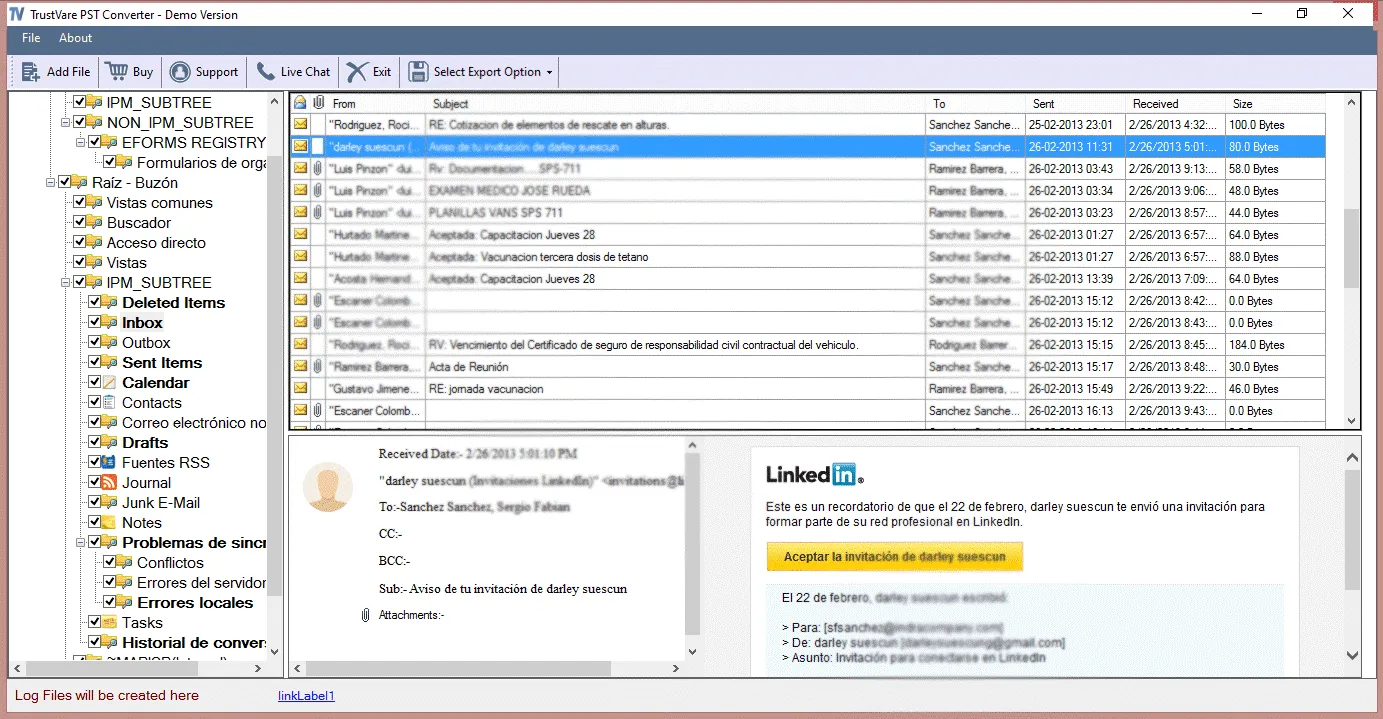
- Start the conversion process via the tool.
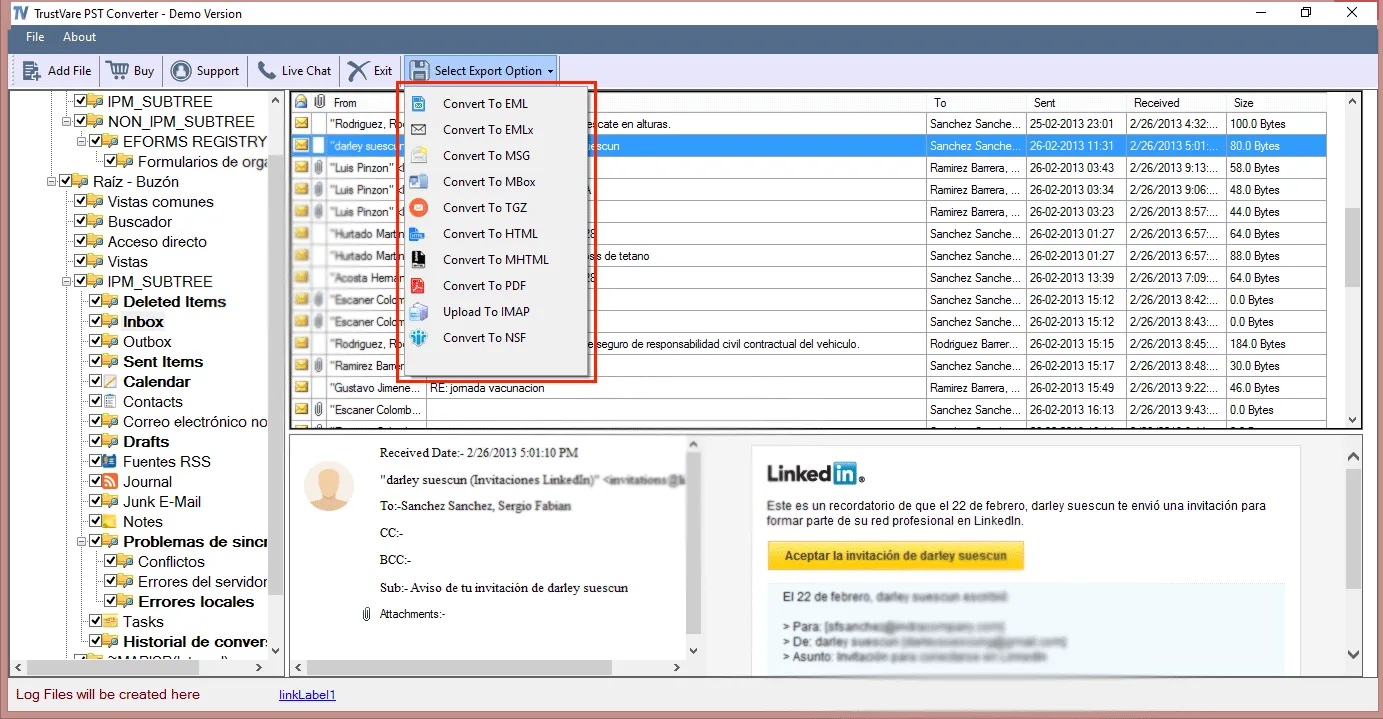
Key benefits of a smooth conversion
- Users maintain uninterrupted access to their mailboxes and folders.
- All information is converted, including calendars, contacts, emails and attachments.
- To prevent confusion or loss, folder structure and metadata are maintained.
- Business operations are unaffected as the conversion takes place in the background.
- With the correct tools and procedures, data is secure from beginning to end.
Final thoughts
It does not have to be difficult to convert PST files to Office 365. A seamless shift is possible with careful preparation. A zero downtime approach keeps the company operating. Data cleaning, testing, scheduling and verification are all crucial manual processes. A layer of automation is added by the tool, which makes the process easier and safeguards your data. Decide when to make the change, interact with your users and confirm the outcomes. Your PST to Office 365 Converter will be effective, secure and mostly undetectable to end users if you follow these instructions. Complete access, data integrity and business continuity are ultimately yours.