How to Add a Promotion on LinkedIn: Step-by-Step Guide

Announcing your promotion on LinkedIn is a fantastic way to showcase your professional growth and achievements. Knowing how to add promotion on LinkedIn can significantly enhance your profile, clearly reflecting your career advancements. LinkedIn, being a platform dedicated to professional networking, allows you to update your profile effortlessly. In this detailed guide, well walk you through the process of adding a promotion to your LinkedIn profile.
Why Adding Promotions on LinkedIn Matters
Highlighting your promotions on LinkedIn helps:
-
Showcase career progression
-
Attract potential recruiters and employers
-
Boost professional credibility
-
Expand your professional network
Step-by-Step Guide to Adding a Promotion
Follow these simple steps to add your promotion effectively on LinkedIn:
Step 1: Log in to Your LinkedIn Account
-
Visit the LinkedIn homepage and log in with your credentials.
Step 2: Navigate to Your Profile
-
Click on your profile picture or select Me from the top menu.
-
Select View profile to access your personal LinkedIn profile.
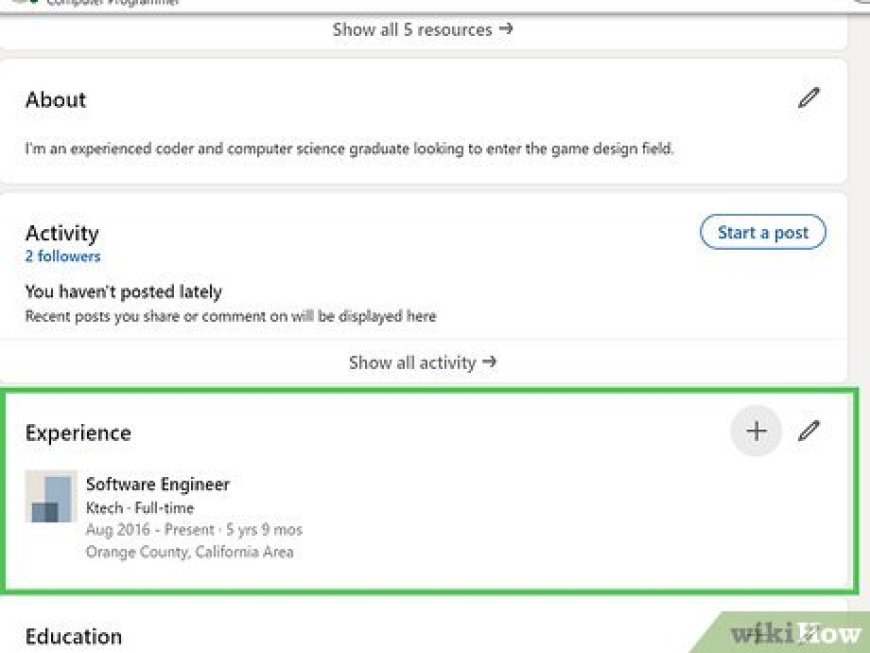
Step 3: Locate the Experience Section
-
Scroll down to the Experience section of your profile.
Step 4: Edit Your Current Job Role
-
Click on the pencil (edit) icon next to your current job position.
-
Instead of editing, choose Add position to accurately display your promotion history.
Step 5: Enter Your Promotion Details
-
Input your new job title in the Title field.
-
Update the Employment Type and company details if needed.
-
Set the start date of your new role.
-
Ensure the I am currently working in this role option is checked.
Step 6: Link Positions for Promotion Display
-
Ensure the company name matches your previous position exactly. LinkedIn automatically groups promotions under the same employer.
-
Verify that the timeline accurately reflects your promotion progression.
Step 7: Save Changes
-
Review the details carefully.
-
Click Save to update your profile.
Announcing Your Promotion
After updating your profile, LinkedIn offers the option to announce your promotion publicly:
-
Use LinkedIns automatic prompt to share your update.
-
Write a personalized announcement to highlight your excitement and gratitude.
-
Tag your colleagues or mentors who contributed to your promotion journey.
Tips for an Effective Promotion Announcement
To maximize your promotion announcement's impact:
-
Use a professional yet personable tone.
-
Express gratitude to mentors, colleagues, or leaders who supported you.
-
Highlight your key achievements that led to the promotion.
-
Keep your announcement concise and engaging.
Benefits of Adding Your Promotion
Clearly updating your promotions on LinkedIn provides several benefits:
-
Enhanced professional reputation
-
Increased visibility among industry peers and recruiters
-
Demonstrating your career growth trajectory
-
Strengthening professional connections
Common Mistakes to Avoid
Ensure your promotion announcement on LinkedIn is flawless by avoiding these common mistakes:
-
Incorrect dates or titles
-
Forgetting to update the employment timeline accurately
-
Not acknowledging key contributors
-
Overly lengthy or overly casual announcements
Conclusion
Adding your promotion on LinkedIn is straightforward and highly beneficial for your professional branding and networking efforts. Following the steps outlined above, coupled with thoughtful, concise communication, ensures that your career advancements are appropriately highlighted. Keep your LinkedIn profile updated and leverage your promotions to attract new professional opportunities and connections.