


























How to Host your QuickBooks Company Data in Multi-user Mode?
Host your QuickBooks company file for multi-user access so your whole team can enter data, run reports, and manage finances together in real time.
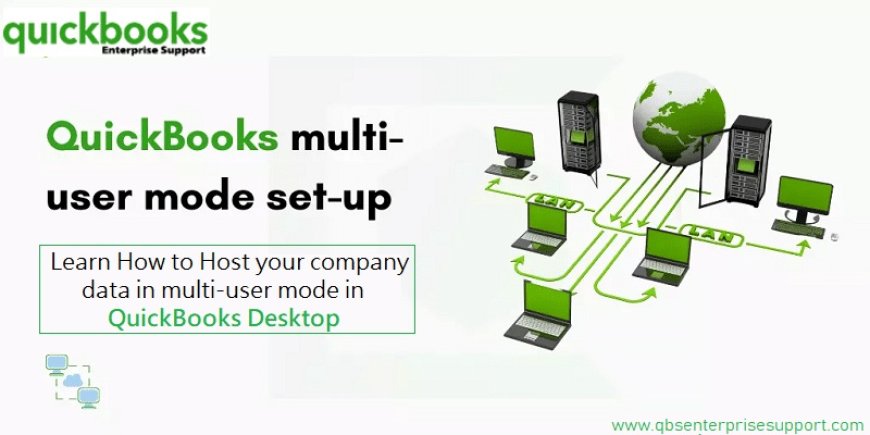
How to Host Your QuickBooks Company Data in Multi-User Mode
Are you looking for a one-stop and easy step-by-step guide to host the company data inmulti-user mode in QuickBooks desktop? If yes, then you have landed on the right page, as through this segment, we will be discussing the entire process to host the company data in multi-user mode in QuickBooks desktop.
Why Multi-User Mode Is a Small Business Game Changer
QuickBooks Multi-user mode lets your bookkeeper, sales team, manager, and others all log into QuickBooks on different computers at the same time. Its like turning a one-bathroom house into a building with several bathroomssuddenly, no lines, no waiting, and everyones happier.
Common Problems & Quick Fixes
Cant Switch to Multi-User Mode?
Restart the Database Server Manager or reinstall QuickBooks.
Slow Performance?
Your network or computer may be overwhelmed. Try fewer users or upgrade your hardware.
Error Messages (H202, H303)?
Usually a firewall or network issue. Double-check your settings.
Someone Locked Out?
Make sure everyone logs out properly when theyre done.
Step-by-Step Setup
1. Install QuickBooks Everywhere
Put QuickBooks on every computer that needs access. When installing, choose Custom and Network Options.
2. Pick Your Host Computer
Choose a reliable, always-on computer to store your company file. This is your server.
3. Turn On Multi-User Access
On the host computer, open QuickBooks.
Go to File > Utilities > Host Multi-User Access and say Yes.
4. Set Up Windows Permissions
Right-click the folder with your company file.
Go to Properties > Security and make sure QBDataServiceUser has Full Control.


